Mein Libri: Searching and ordering
Mein Libri – your online link to Libri
The Libri online catalog includes several million titles with product details, cover images, and reviews. This makes it ideal for presenting titles to your customers.
If you have already received your login credentials, this document provides a brief introduction to using “Mein Libri.” You will receive your access data from our new customer department after the contract has been concluded. Only then can you register or log in.
If you do not yet have a contract with Libri, please contact one of our customer advisors first.
Login
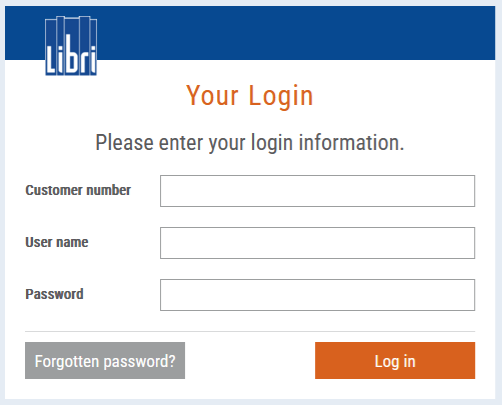
You will find Mein Libri at https://mein.libri.de/. Enter your login data (customer number, user name and password) which you have received from us.
After the first login, you will be prompted to change your password. It must be at least 8 characters long and consist of small and uppercase letters, numbers and special characters. You can start using Mein Libri directly after you have accepted our privacy policy, terms of use as well as our current terms of delivery and payment.
Search
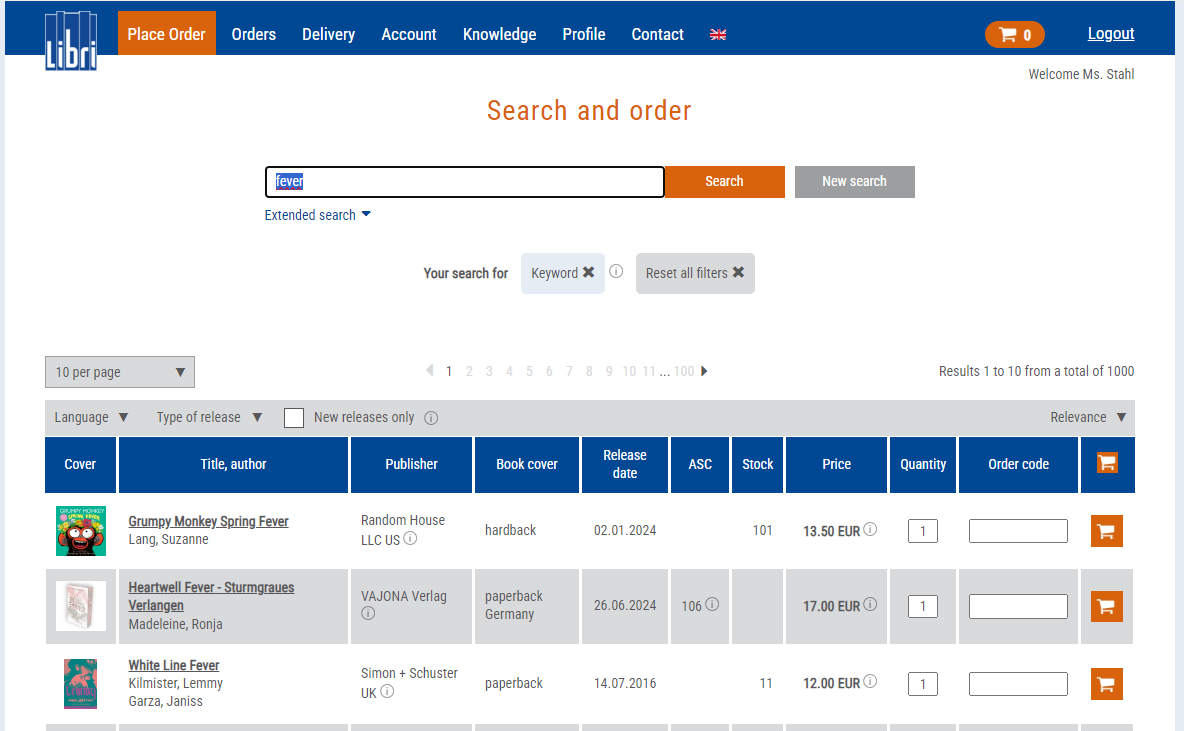
The catalog search can be found under the menu item "Place Order > Search". As a start you will see the quick search. Entering one or more keywords will start a search for all articles in the online catalog. This search covers all data fields, such as title, subtitle, author, publisher etc. The extended search gives you more options to use your expertise (see page 2 for more information).
Search results
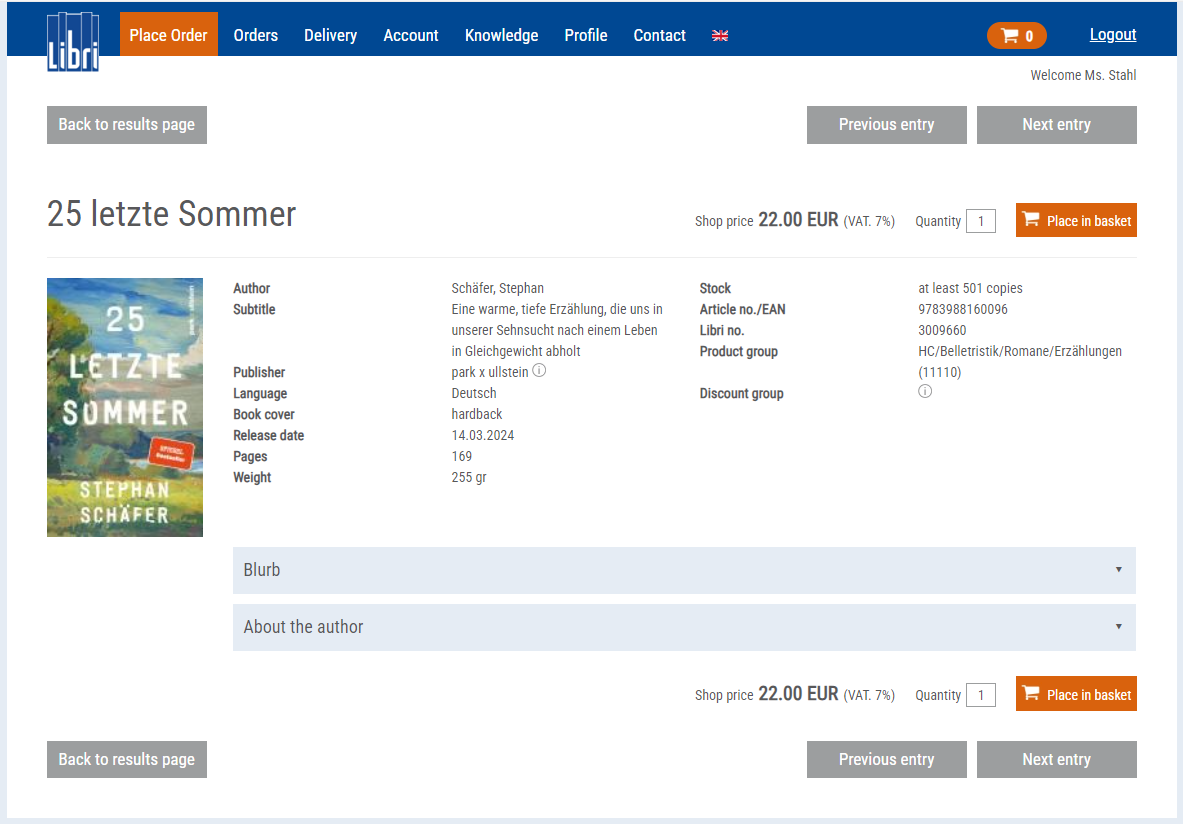
Search results are displayed as a list which can be browsed using the arrow buttons (at the top and bottom of the list). The list shows title and author, publisher, type of book cover, availability status code, available stock and pricing for each item. In the first column you can see the cover image. If you want to see detailed information for an item, just click on the title text. A new window opens, showing all information and images. This full display is great for presenting articles to your customers in your store.
Extended search
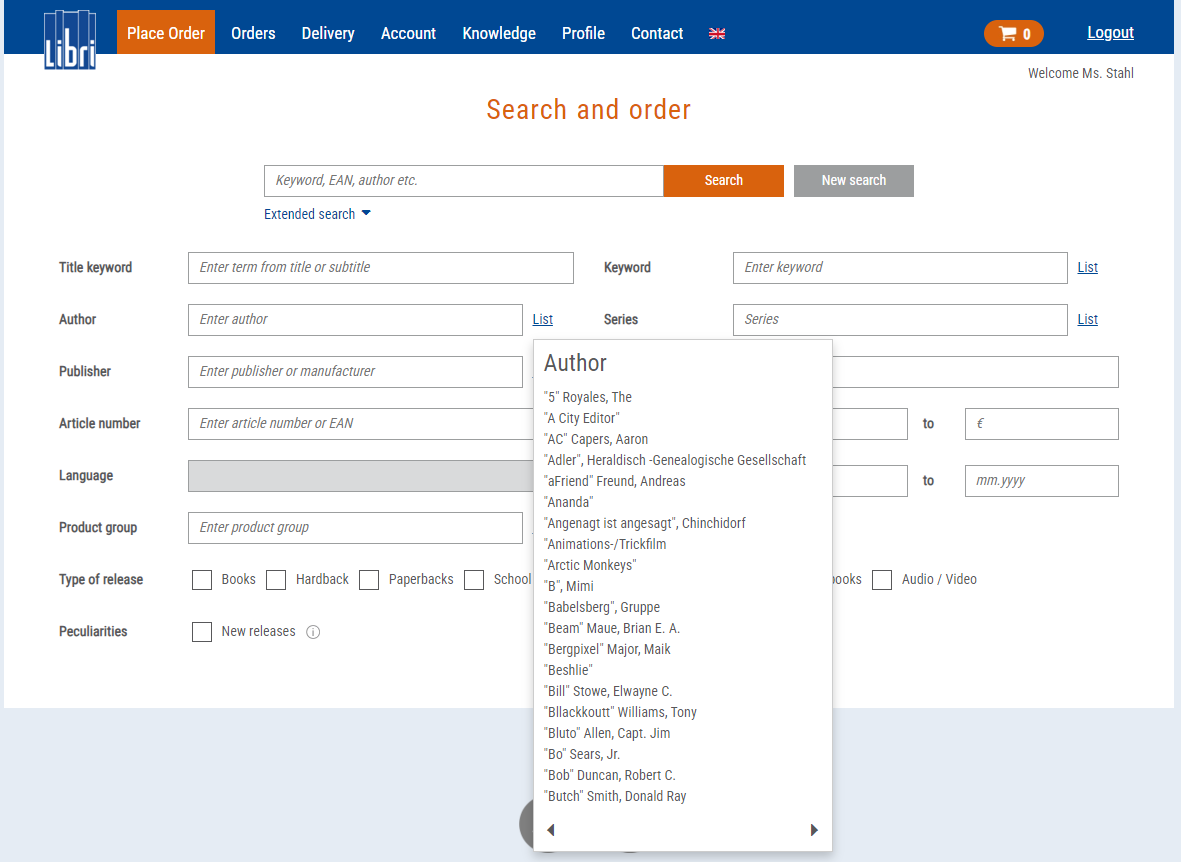
To open the comprehensive search mask, please click on "Extended search" below the search field. Here you can specify all relevant article attributes. You can use filters for the media type, e.g. "paperbacks", "audio/video" or "calenders". Additionally you can use lists, like author- and keyword-lists, which can be browsed with the "◄" and "►" buttons.
Order in four steps
To order an article, just click on the button "Place in basket" (on the right side of the results list or above and below the detailed view). To order more than one copy, simply enter the desired number in the field "Quantity"; you can correct this later on - in the basket. After selecting all items, the Shopping Cart icon at the top right of the menu bar will take you to the basket.
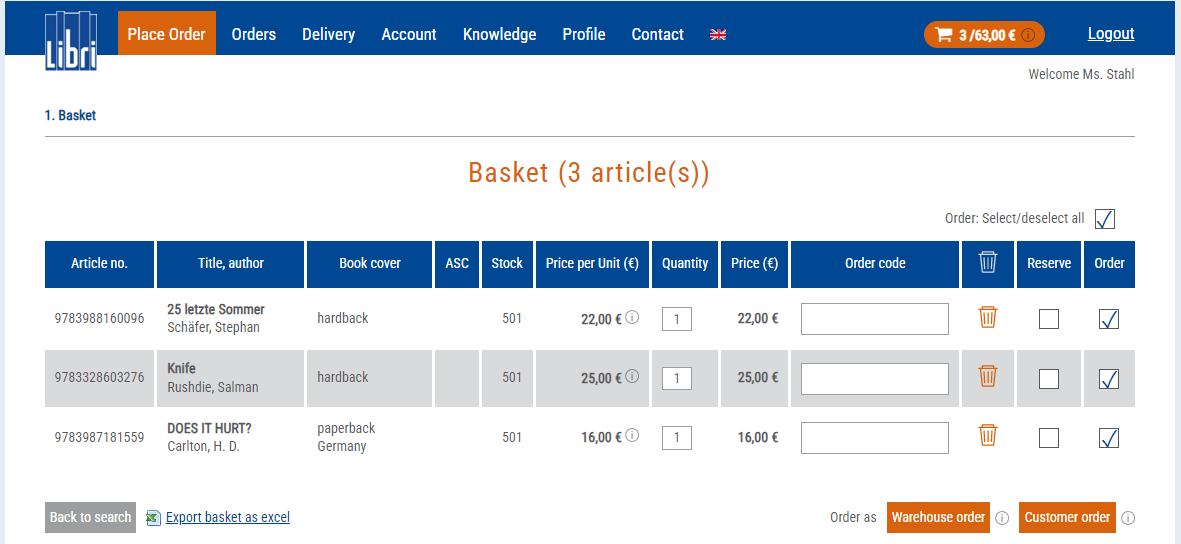
In Step 1 Basket, you can see the content of the shopping basket. Here you can change the quantities or delete individual items. Both the price per unit as well as the total price for each item is displayed. You can chose between the order types “warehouse order” and “customer order”.
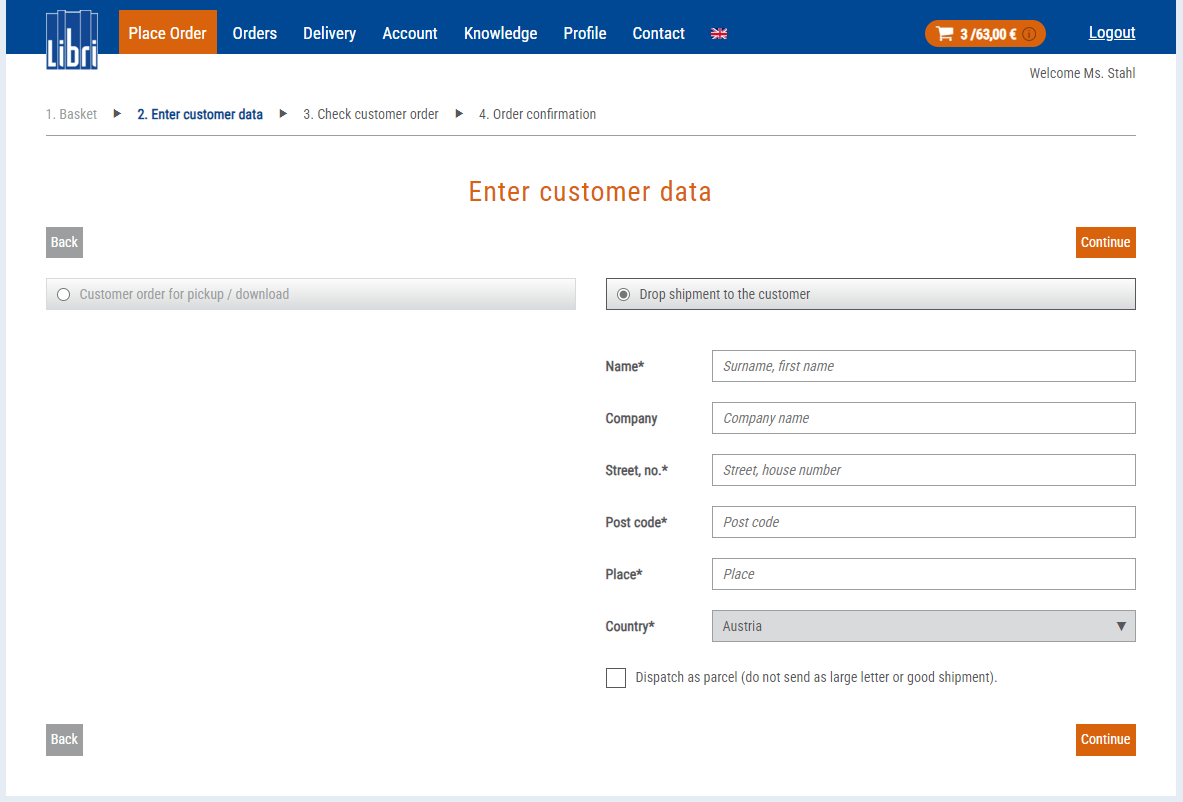
In step 2 Enter customer data, you can choose between customer order for pickup (in your bookstore) and direct dispatch to the customer (Libri.Direct). Please enter the required fields marked with * – depending on the selected order type – and click on “Continue”.
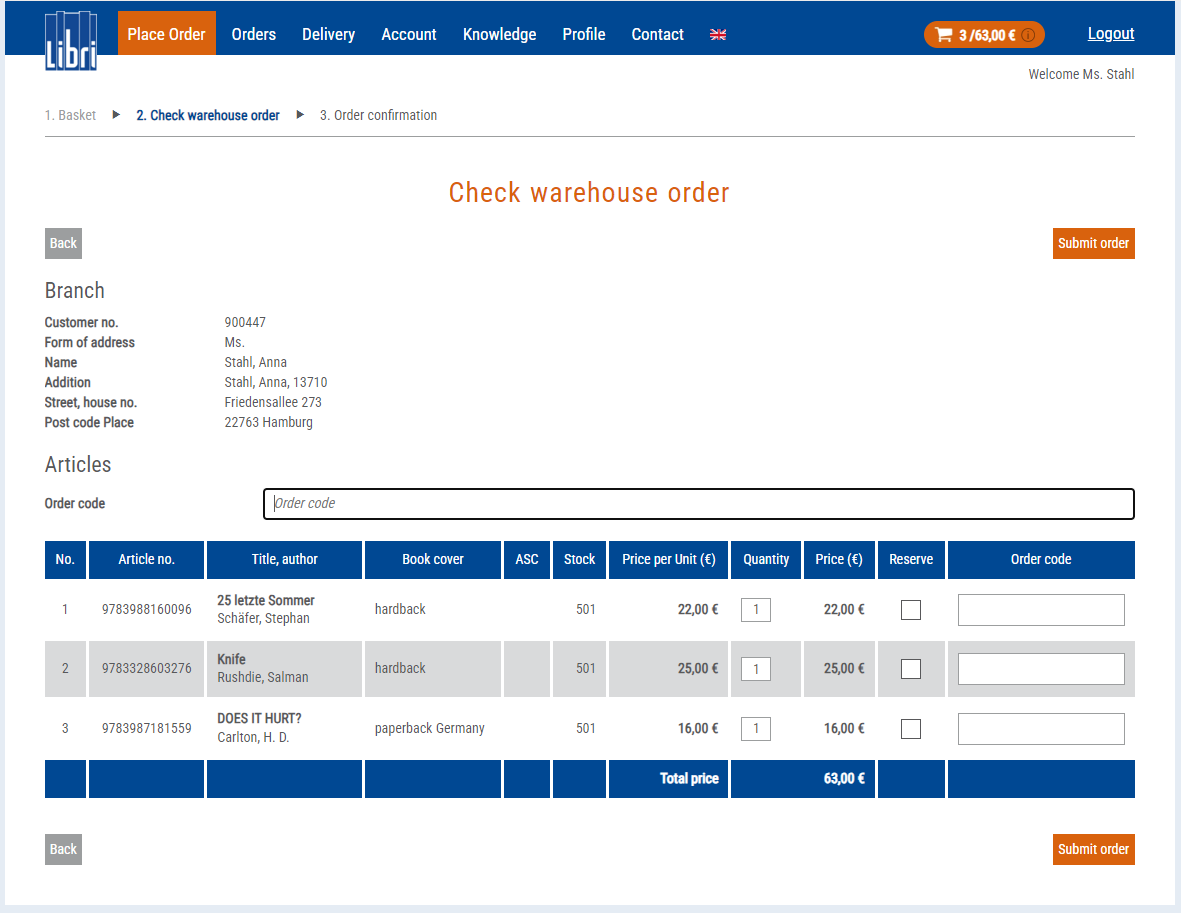
This step of entering customer details is not required when placing a warehouse order.
In Step 3 Check customer order the overview of your order is displayed. Clicking on “Submit order” will transfer your order to Libri and in step 4 you will receive the order confirmation.
Check order status
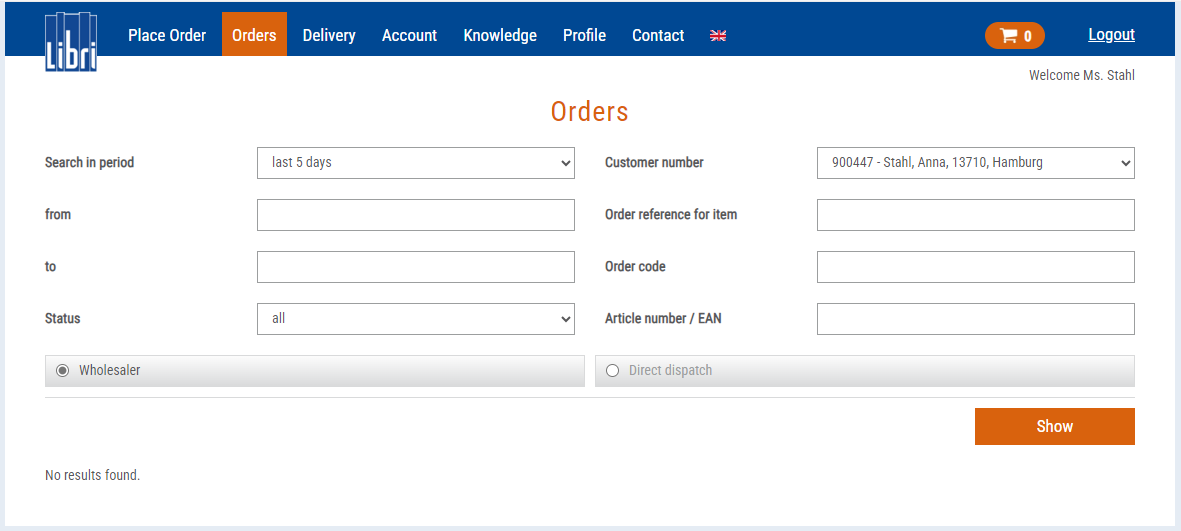
You can check the status of your orders at any time via the menu "Orders > Orders".
Here you will find extensive search options.
Help?
Click on "Help" at the bottom of each page to access the online help and the FAQs. The (і) icon refers to explanations andtips. Have fun searching and ordering!
Was this article helpful?
That’s Great!
Thank you for your feedback
Sorry! We couldn't be helpful
Thank you for your feedback
Feedback sent
We appreciate your effort and will try to fix the article