If you are unable to revoke authorization in Adobe Digital Editions because the password is not recognized, you can force the program to deauthorize using the following method:
On Windows 10 and 11: Delete the Adobe Adept folder
- Completely close Adobe Digital Editions.
- Open the “Registry Editor” using Windows Search.
- Under the HKEY_CURRENT_USER key, locate the “Software” folder and the “Adobe” subfolder. In the “Adobe” folder, right-click the entire “Adept” subfolder and select “Delete” – confirm the prompt by clicking “Yes”.
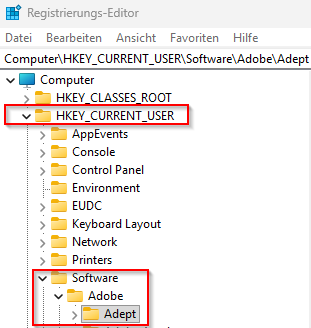
- Then restart Adobe Digital Editions and log in again.
macOS 15 and macOS 26: Delete activation.dat
- Completely close Adobe Digital Editions.
- Open Finder.
- In the menu bar, click “Go” → “Go to Folder…” (or alternatively, press Shift + Cmd + G).
- Enter the following path and press Enter: ~/Library/Application Support/Adobe/Digital Editions.
- Right-click the activation.dat file and delete it.
- Restart Adobe Digital Editions and reauthorize the device.
- IF the problem persists: Delete the entire Adobe Digital Editions folder, then restart Adobe Digital Editions.
Was this article helpful?
That’s Great!
Thank you for your feedback
Sorry! We couldn't be helpful
Thank you for your feedback
Feedback sent
We appreciate your effort and will try to fix the article